How to Do Programmatic SEO in WordPress: Step-by-Step Guide
How to do programmatic SEO in WordPress with a maintained 2026 plugin stack, an AI step with human review, and guardrails against scaled content abuse.
Sam Abrahams
 Reviewed by
Maeva Cifuentes, Founder and CEO

You have finished the strategy part of programmatic SEO. The keyword research is done. You have a list of niches that fit a repeatable keyword pattern, such as integrations, use cases, audiences or locations. You know which pages you want. This guide covers the build in WordPress with the plugin stack we would use in October 2026.
How do you do programmatic SEO in WordPress? You write one landing page template with placeholders, build a spreadsheet where each row contains the unique data for one page, and use a page generator plugin such as MPG or WP All Import to turn every row into a published page. Before you publish, review a sample of pages by hand, because Google treats large sets of thin, near-identical pages as scaled content abuse.
The workflow looks similar in any CMS. The steps below cover the plugins, limits and quirks specific to WordPress. They draw on the programmatic builds our team has run for B2B SaaS clients, including the hospitality middleware SaaS in our programmatic SEO case study. Its 1,700 integration pages converted at 5%, against a 1% site average, and produced 40% of its SEO demo requests.
The WordPress programmatic SEO stack in 2026
Every plugin below was checked on wordpress.org on October 17, 2026. All of them are tested up to WordPress 7.1.3.
| Job | Plugin | Last updated | Notes |
|---|---|---|---|
| Generate pages from a sheet | MPG: Multiple Page Generator (Themeisle) | October 13, 2026 | Placeholders like {{mpg_city}} in any page or post. The free version caps you at 50 rows. Unlimited rows and scheduled syncs need Pro. |
| Import rows as standard posts with custom fields | WP All Import | October 5, 2026 | Imports CSV, XML, Excel and Google Sheets. Best when you want each page stored as an editable post. |
| Store the variables as fields | Advanced Custom Fields or Secure Custom Fields | September 10, 2026 and October 15, 2026 | ACF has over 2 million active installs. Secure Custom Fields is the WordPress.org fork of ACF. |
| Display fields without code | Advanced Views (formerly ACF Views) | October 15, 2026 | Builds the layout for your custom fields and embeds it in Gutenberg or Elementor. |
| Build the template | Elementor or Gutenberg with GenerateBlocks | October 13, 2026 (both) | Gutenberg is lighter and faster to load copy into. Elementor gives designers more control. |
The 2023 version of this guide recommended Thrive Architect. It is sold only through the vendor and has no wordpress.org listing, so we dropped it from the table.
Pick one of two routes. MPG is the fastest. It reads your sheet and renders a page per row from a single template. WP All Import with ACF takes longer to set up, but every page becomes a standard WordPress post that editors can open and improve by hand. For a few hundred pages that will each get human edits, we prefer the second route.
Step 1: Write copy with variables for your landing page template
Your template has to do four jobs.
- Answer the search intent of the audience behind the keyword pattern.
- Fit your long-tail keywords and variables naturally.
- Follow SEO basics, including metadata, a clear heading structure and internal links.
- Convert, with CTAs placed where a buyer is ready to act.
How you produce this copy depends on your team. At Flying Cat it runs through our content creation process.
- A strategist writes a detailed brief. It covers naming conventions, metadata, internal links, the narrative angle and the key takeaways for the audience.
- A writer drafts an outline. The team reviews and approves it before any copy is written.
- The writer and editor produce the copy with placeholders. We work in Google Docs, but any editor with version history works.
- The approved copy becomes the publishing template. Its final shape depends on the search intent, the product and the niches.
Zapier is the best-known public example. Every element highlighted below is a variable.
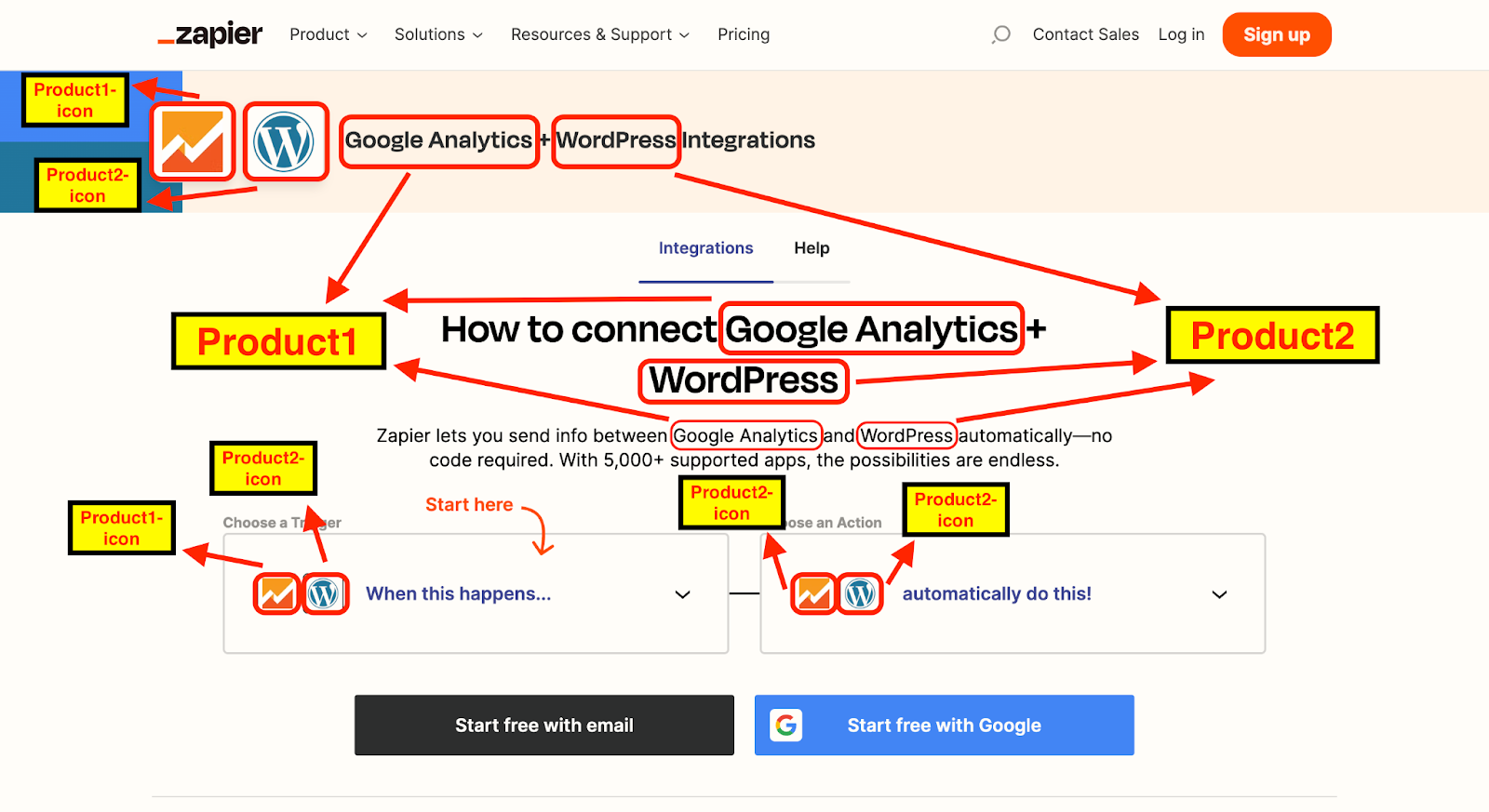
Zapier uses programmatic SEO to create thousands of integration landing pages.
Your template contains placeholders instead of the variables themselves. Here is one of our brief templates before any detailed copy goes in. It is for a set of competitor comparison pages in virtual event software.

Our strategists start every programmatic build with a brief that lists each placeholder.
For more page types that work well with this approach, see these programmatic SEO examples.
Step 2: Build the template in WordPress
With the headings, images, CTAs and placeholders mapped out, build the template page in WordPress. On the MPG route, you type placeholders such as {{mpg_integration}} straight into the page. On the WP All Import route, you first create the custom fields in ACF or Secure Custom Fields, one field per variable. Then you use Advanced Views to lay those fields out in the template without writing code.
Barbara Pereira, the Flying Cat project manager who uploaded and checked these builds, prefers Gutenberg to the heavier page builders.
"Honestly, I find Elementor a pain because when you upload copy into an Elementor template, you have to wait. It's very slow in my experience," Barbara explained. "And then the fonts and the formatting need lots of tweaking. For me, not a developer, it's not intuitive at all. The same for Thrive. Gutenberg, for normal blog posts, is much friendlier."
Her main advice is about checking. "Quality check it. Quality check it very carefully, because it's easy for small errors to appear."
The time you put into the template pays back, since it becomes the backbone of every page in the set.
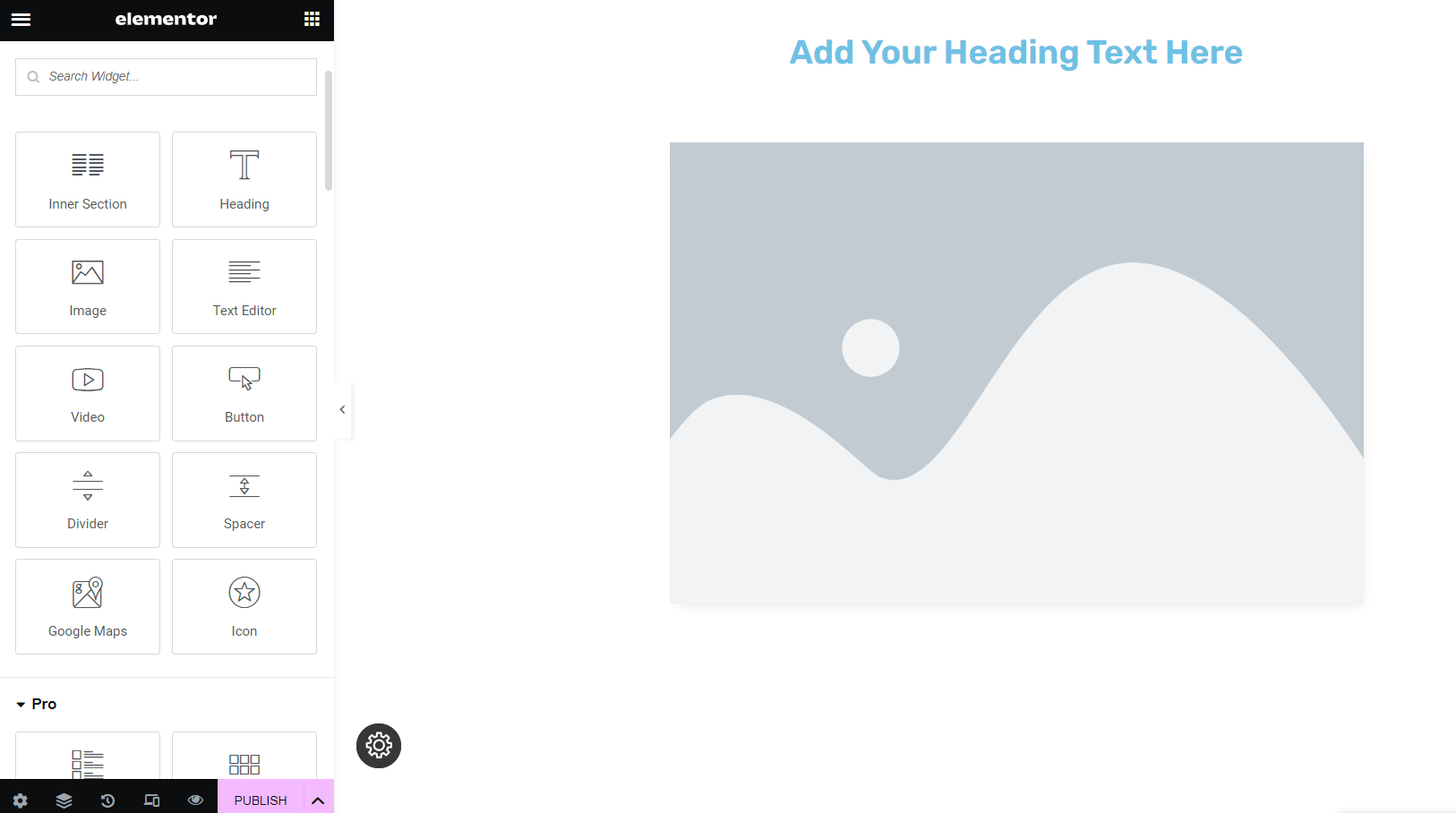
The Elementor editor before template creation.
Step 3: Build the database of variables
The database stores the content that makes each page different. You can build it in Google Sheets, Airtable or Excel, as long as you can export a CSV or share a Google Sheet link. We use Google Sheets because it fits the rest of our strategy and content workflow.
Fill the first columns with the niche variables
For a project management tool targeting use cases, column A might list professions. These values usually complete your long-tail keywords.
Fill the first row with the placeholder names
These match the placeholders in your template, such as competitor names, features, prices, customer goals or pain points.
Fill the remaining cells with the unique content
These cells differentiate the pages. Each one should hold information specific to that niche, such as the integration's actual workflow, the profession's actual pain point or the competitor's actual pricing model.
Here is one of our programmatic databases. The first two columns hold the niche variables that complete the primary keywords. Row 1 lists the placeholders for the whole template. Every other cell is unique content.
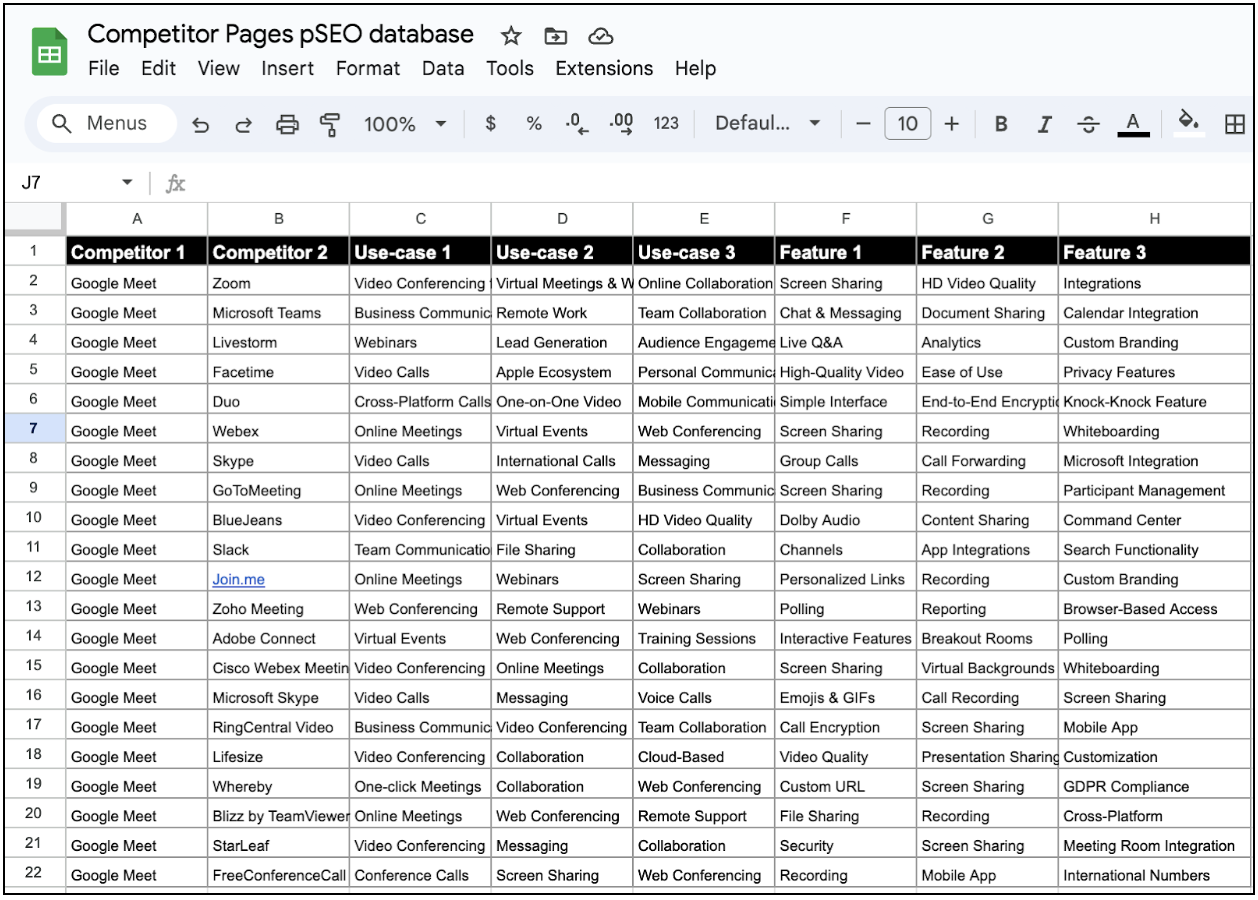
A programmatic database can hold thousands of variables across hundreds of rows.
Step 4: Generate unique page content with AI, then review it
Writing hundreds of unique cells by hand rarely pays off, so we use AI to draft the content columns. The output is only as good as the inputs. Our prompts include the desired outcome, the niche variables and keywords, the tone of voice, and research on the audience's pain points from the client's brand research.
Usman Akram, Flying Cat's former Head of SEO, explained why this keeps the content useful.
"Using AI to create variable content at scale is an incredible cost-saver for our clients. Even though it's AI-generated content, it still draws on our product knowledge and understanding of customer pain points, because it's bringing in research directly from the Brand Bibles we create for each client. So while the insights are AI-generated, they're still unique. They rely on our expertise, and they're specific to the audience's search intent."
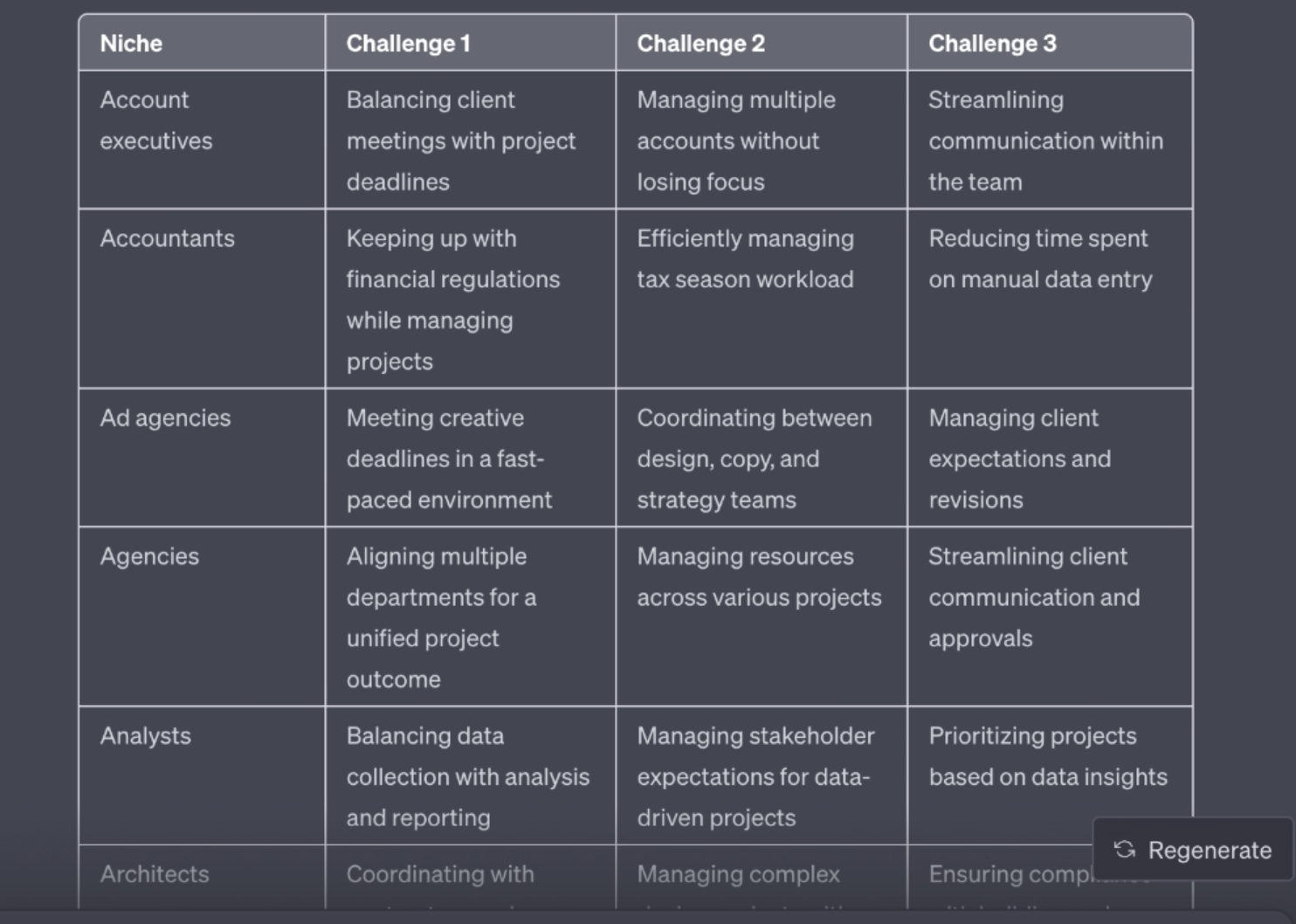
An AI prompt fed with client research drafts the pain point columns for every row.
In 2026 we run this step with any capable model (ChatGPT, Claude or Gemini) and add three checks before anything reaches WordPress.
- Ground the model in data. Feed it the product facts, integration documentation, pricing and customer research for each row. Ask it to write only from those inputs and to leave a cell blank when the inputs do not cover it.
- Check the facts in the sheet. An editor verifies every claim about features, prices, integrations and competitors against the source. Google's own guidance on generative AI content says to check AI output for accuracy and to apply the same review to titles, meta descriptions and structured data.
- Check uniqueness across rows. Sort the sheet column by column and look for cells that repeat with only the niche name swapped. Rewrite those or drop the row. A page with no unique information has no reason to exist.
Once the sheet passes review, export it as a CSV or keep the Google Sheet link ready for import.
Step 5: Generate the pages with MPG
MPG creates one page per row of your database. Install it from the WordPress plugin directory (search for "MPG Multiple Page Generator"). The screenshots below come from an earlier version of the plugin, so labels may differ slightly in the current release.
Create a new project
Open MPG in the WordPress dashboard and select "Create New".
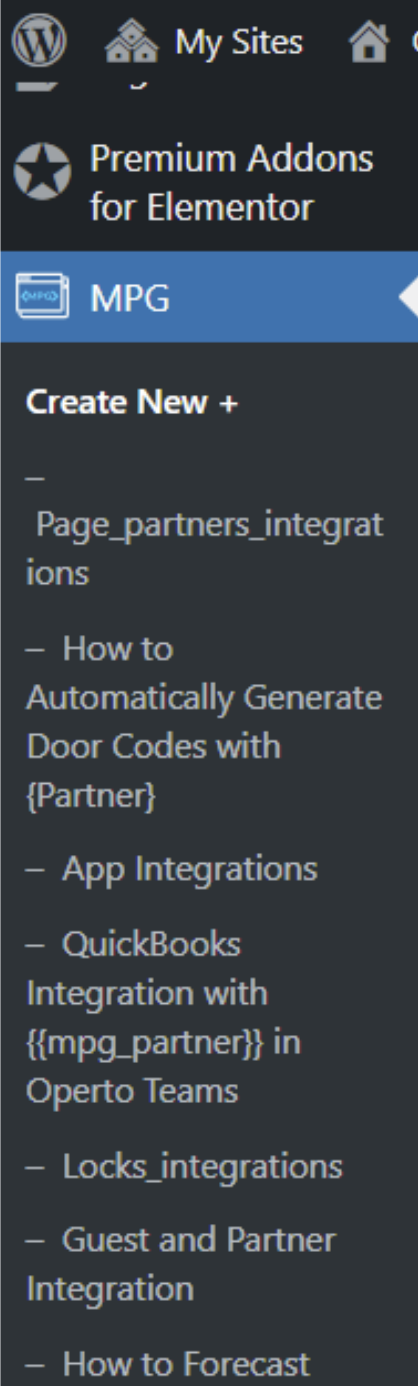
The MPG plugin dashboard.
Name the project and choose the entity type
Choose "Pages" as the entity type, then select your template. Exclude the template itself from crawlers. Keep the generated pages searchable. The project name is for internal use only and never appears on the site.
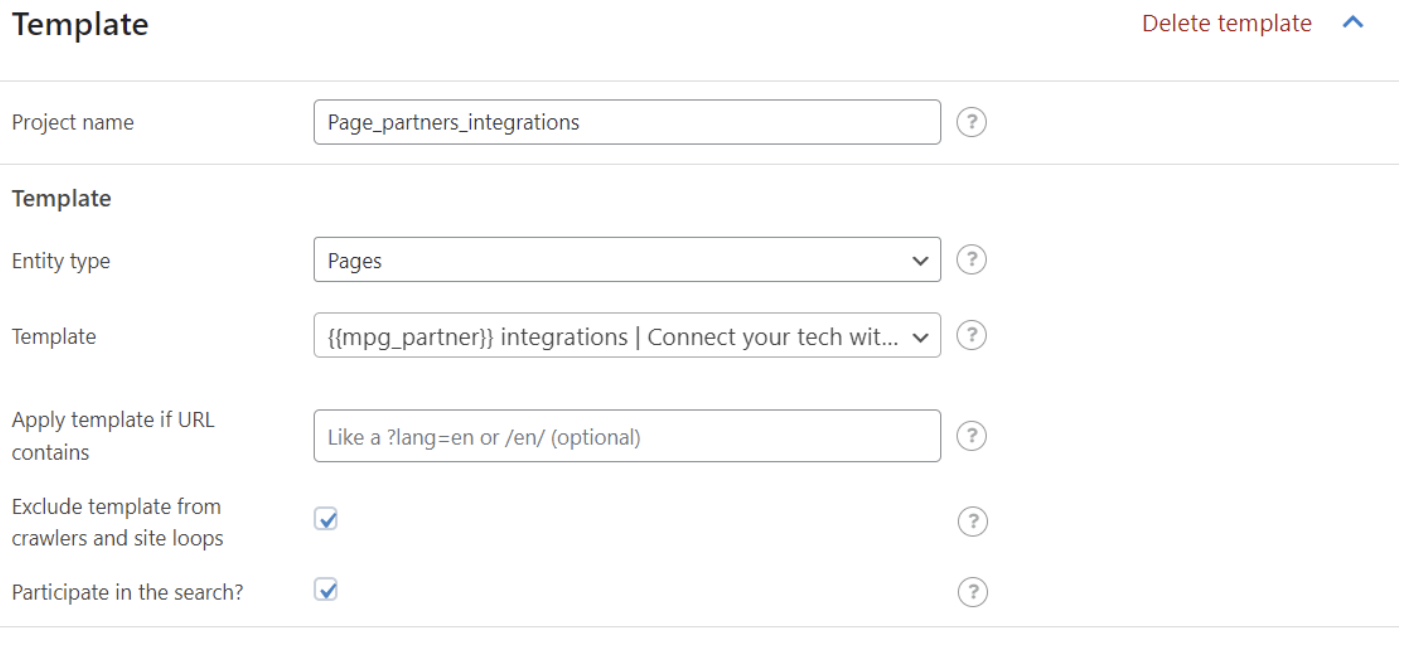
Setting the project name and entity type in MPG.
Upload the data source
Upload your CSV, XLSX or ODS file, or link a Google Sheet. If you plan to update the data regularly, Pro lets you set a sync schedule. Otherwise a one-time import is enough.

Uploading the data source in MPG.
Set the URL pattern and save
Add your slug pattern, for example /integrations/{{mpg_integration}}/, preview a few URLs and save. MPG then generates the pages.
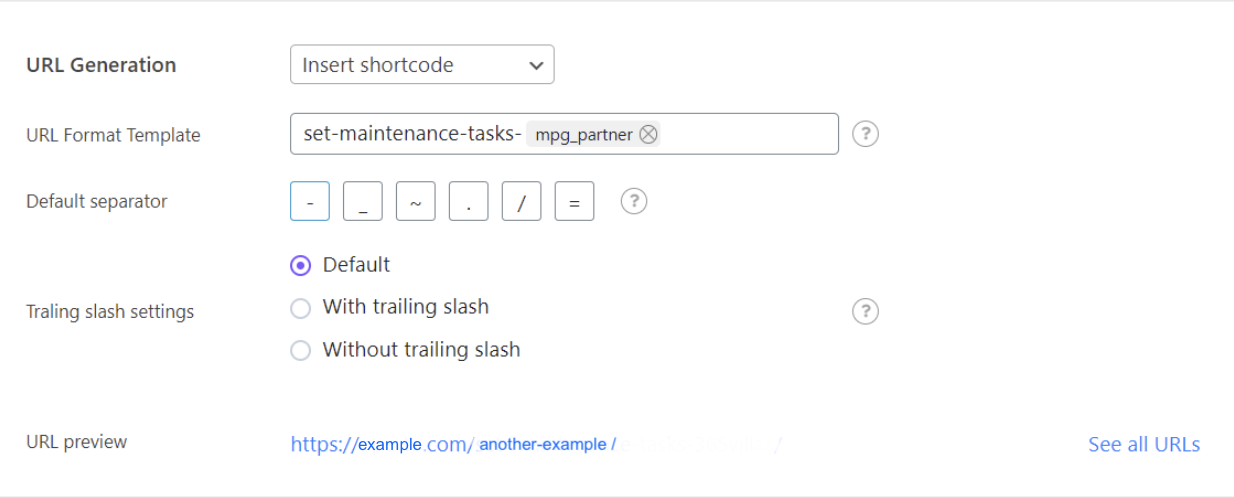
Setting the URL pattern in MPG.
If you chose the WP All Import route instead, map each spreadsheet column to its ACF field in the import wizard. Each row then becomes a post that uses your template.
Step 6: Check the published pages
Check a sample before you announce anything. Barbara's rule is to open at least two pages first.
"If you just check two pages, you'll be able to see that everything has uploaded fine and all the variables match the template. If you spot anything, just go into the MPG plugin and make corrections right there. Then save that updated template and you're done."
For larger sets, add three more checks.
- Crawl the new URLs with Screaming Frog to catch empty placeholders, duplicate titles and broken internal links.
- Make sure the pages are in your XML sitemap and linked from a hub page, so Google can find them.
- Watch indexing in Google Search Console for the first few weeks. A high share of pages marked "Crawled, currently not indexed" tells you Google sees too little unique value.
Step 7: Update or extend the variables
To change content, update the sheet and run the sync again. For bigger changes, upload a new CSV and template, repeat the steps above, then delete the old template and data source in the plugin. Pages that never earn impressions after a few months should be improved, merged or removed.
Google's scaled content abuse policy
Google's spam policies define scaled content abuse as generating many pages mainly to manipulate rankings rather than to help users. The policy applies however the content is made, whether by AI, scraping, automated rewording or people. Its examples include AI-generated pages that add nothing for users, content stitched together from other sites, and pages stuffed with keywords that make little sense to readers. Google introduced the policy with its March 2024 core update.
Programmatic SEO is allowed under this policy. The test is whether each page gives the searcher something they cannot get from the page next to it. In practice we use three rules.
- Build only where the data differs. An integration page needs the actual workflow, setup steps and use cases for that integration. A city page needs local facts. If the only change is the keyword, skip the page.
- Start small. Publish a batch of 20 to 50 pages, watch indexing and engagement, then scale the pattern that works.
- Keep a human in the loop. Someone checks facts, rewrites weak rows and decides which pages go live.
AI search raises the bar further. In Maeva Cifuentes's study of 488 product pages from Forbes Cloud 100 companies, solution and integration pages had a median of one AI citation, against 52 for pricing pages. Template pages that say little beyond the keyword rarely get quoted in ChatGPT or AI Overviews. Pages with specific, descriptive information stand a better chance.
How Flying Cat runs programmatic builds
As the steps show, you do not need to be a WordPress developer to run programmatic SEO. The hard part is publishing pages that rank and convert, not publishing a lot of them. That takes an SEO strategy that picks the right keyword pattern, a brief and template written for the buyer, and editors who check every row before it goes live.
On the hospitality middleware SaaS build, that approach produced integration pages that converted at five times the site average and drove 20% of demo requests across all marketing channels four months after launch. The full story is in our programmatic SEO case study.
Contributing writer for Flying Cat.
Reviewed by Maeva Cifuentes, Founder and CEO of Flying Cat. She leads SEO and AI search strategy for B2B SaaS companies including D2L, Klaviyo, CoVet and Blue J.